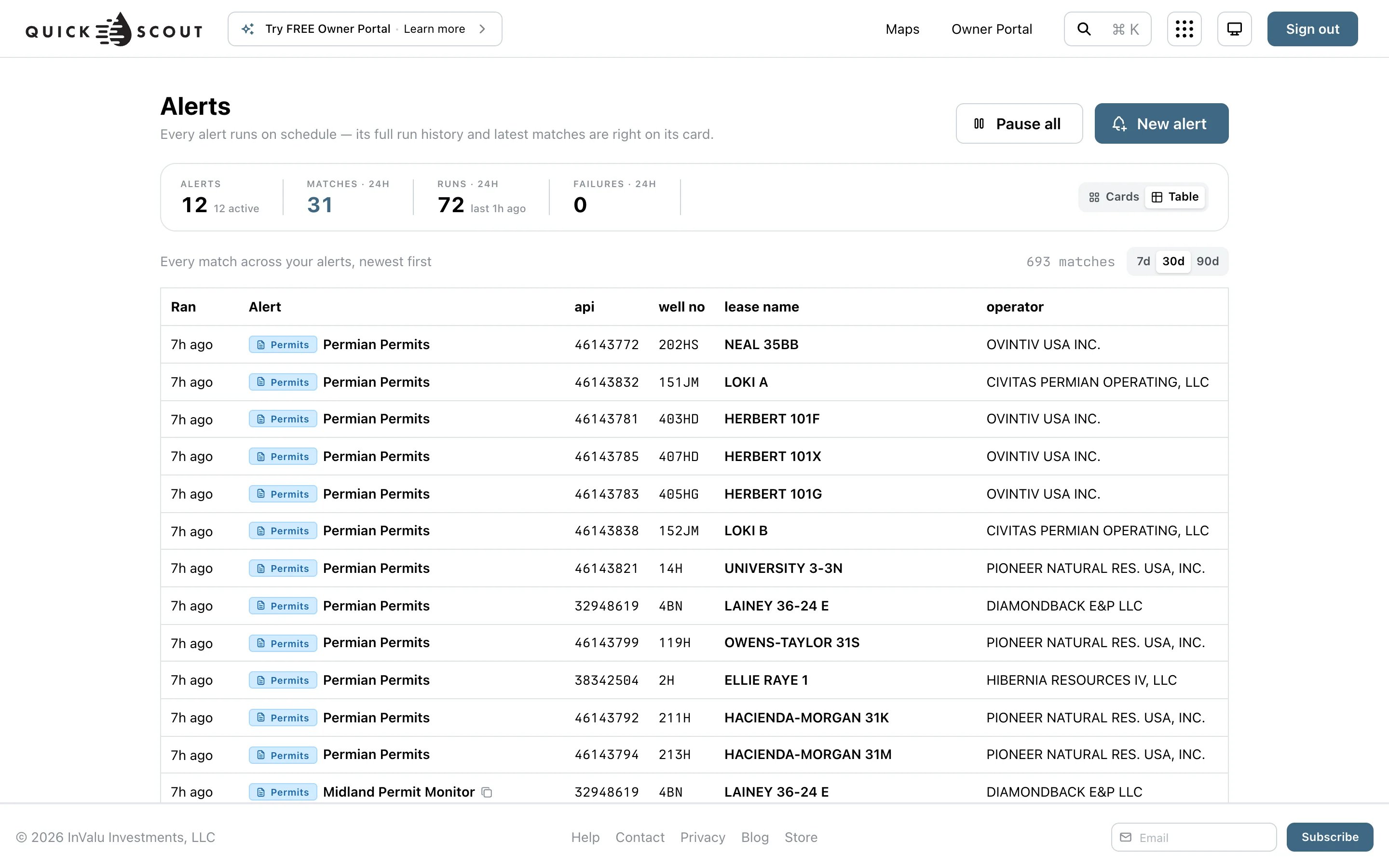
Alerts watch an area and email you when something new shows up there. They need a paid plan, and are turned on per organization. If you see Alerts isn’t enabled, click Request access.

Create an alert on the map

1

Open Alerts

Click Alerts at the bottom of the left rail, then New alert.
2

Area

Draw the area to watch on the map, or pick a county or one of your project’s areas.
3

Source

Choose what to watch for, such as new permits or completions.
4

Review

Check the details and click Create alert. Alerts check for new matches every hour.

Manage alerts

The Alerts drawer lists your alerts. Pause all stops every alert without deleting it; Resume all turns them back on. For more delivery options, go to the Alerts page (from Our ProductsAlerts in the header). There you can:
  • See matches, runs and failures over the last 24 hours.
  • Create an alert with New alert and set its Frequency (every hour, daily, weekly or monthly), Minimum results, Message format and Max items, and whether to Include charts.
  • Deliver by Email or SMS. SMS goes to the phone number on your account.
  • Edit, Duplicate or Delete an alert from its menu.
You can have up to 50 alerts.