

Create an alert
Click New at the top of the drawer. If you have no alerts yet, click New alert. The editor takes three steps: Area, Source and Review. Continue moves on once a step is complete, and Back goes back.1
Area: where should this alert watch?
Add one or more areas. They’re watched together as one.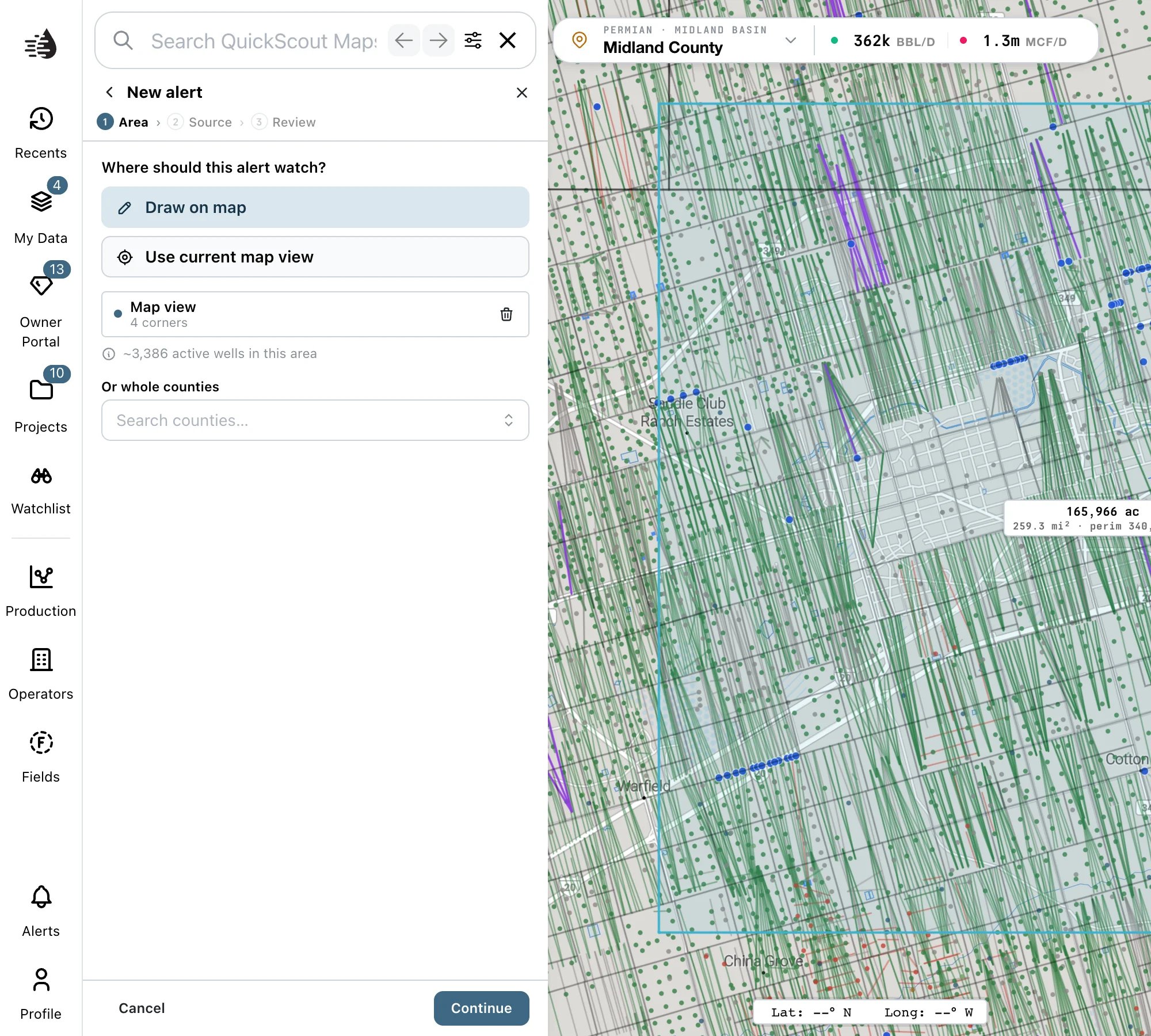
- Draw on map: click to place each corner, then double-click to close the shape. To change a shape afterwards, click it on the map and drag its corners.
- Use current map view: adds the part of the map you can see, a little inside its edges, as an area named Map view. Frame the map first.
- Or whole counties: search for counties and pick them. Use this instead of drawing to watch a county line exactly.
2
Source: what should it watch for?
Pick one source: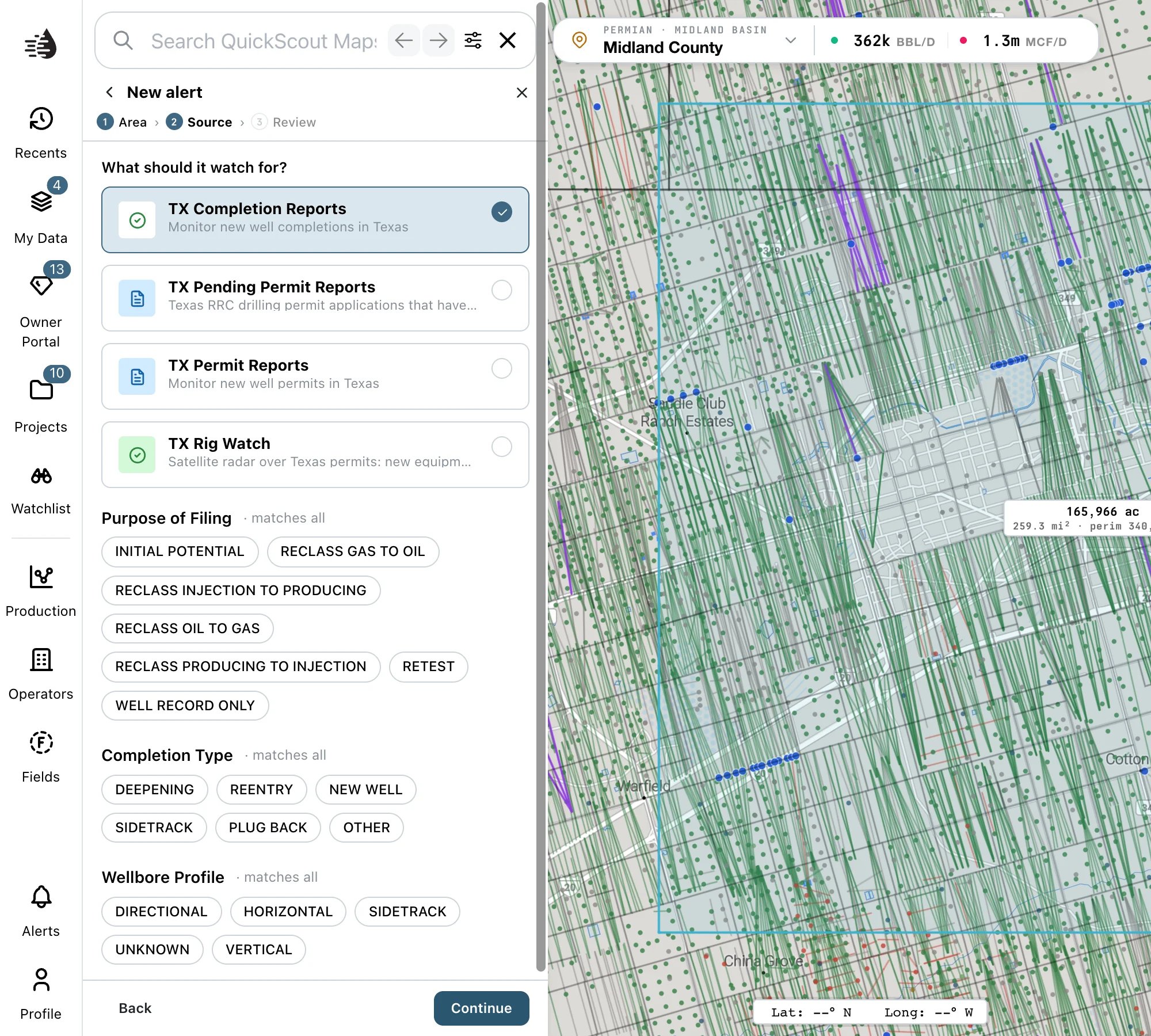
Click the chips under a filter to choose values. A filter with nothing chosen matches all; Clear empties it.Below the filters, a line checks your choices against filings already on record: These filters match existing filings, or No filings match these filters yet. The second isn’t an error; it means nothing like that has been filed in the past, so the alert may be quiet.
3
Review: name it and choose where it goes
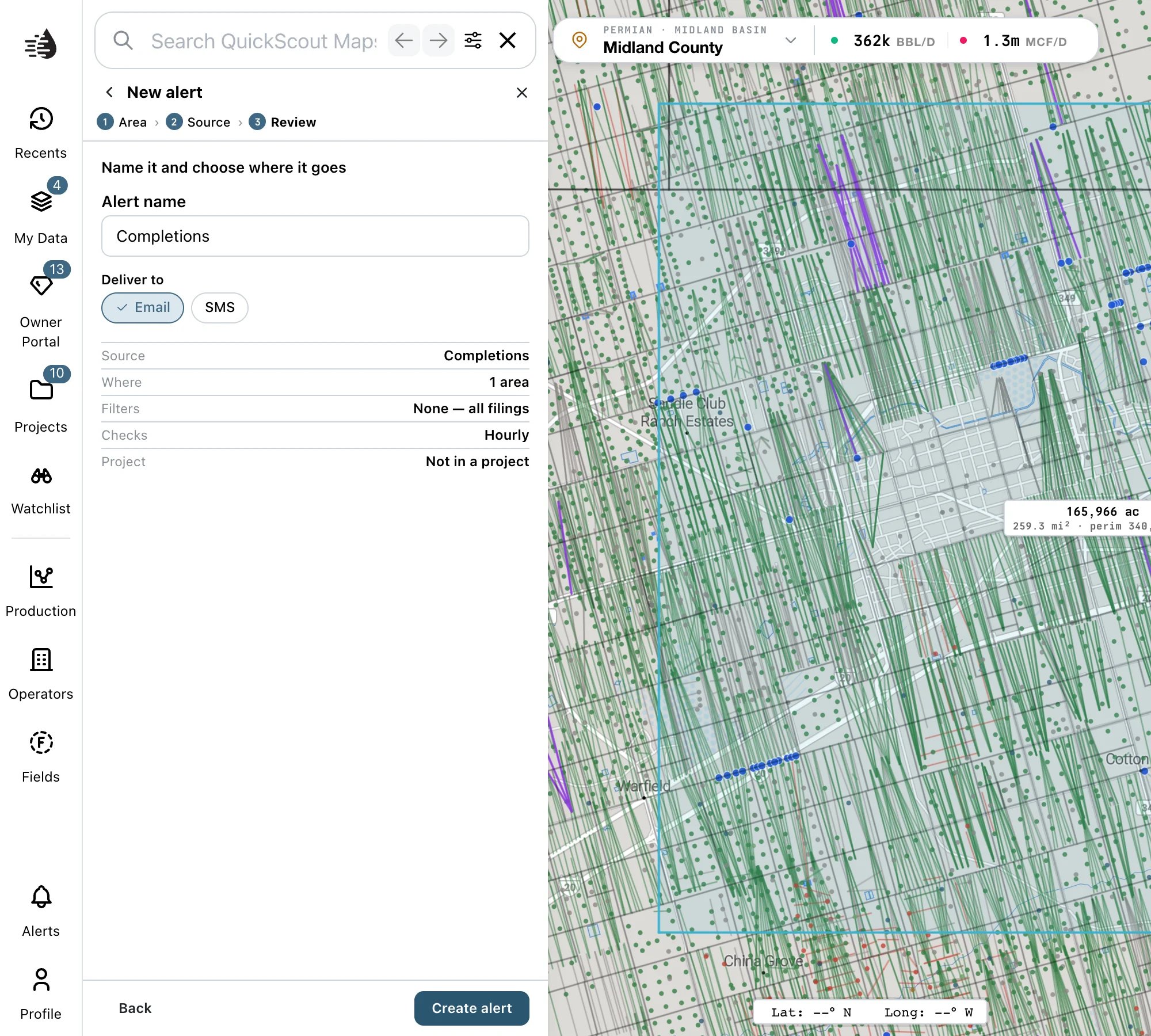
- Alert name: starts as the source’s name, such as Completions. Give it a name you’ll recognize in your inbox, like Martin County horizontal permits.
- Deliver to: Email (on at first), SMS, or both. Texts go to the phone number on your QuickScout account.
Your alerts
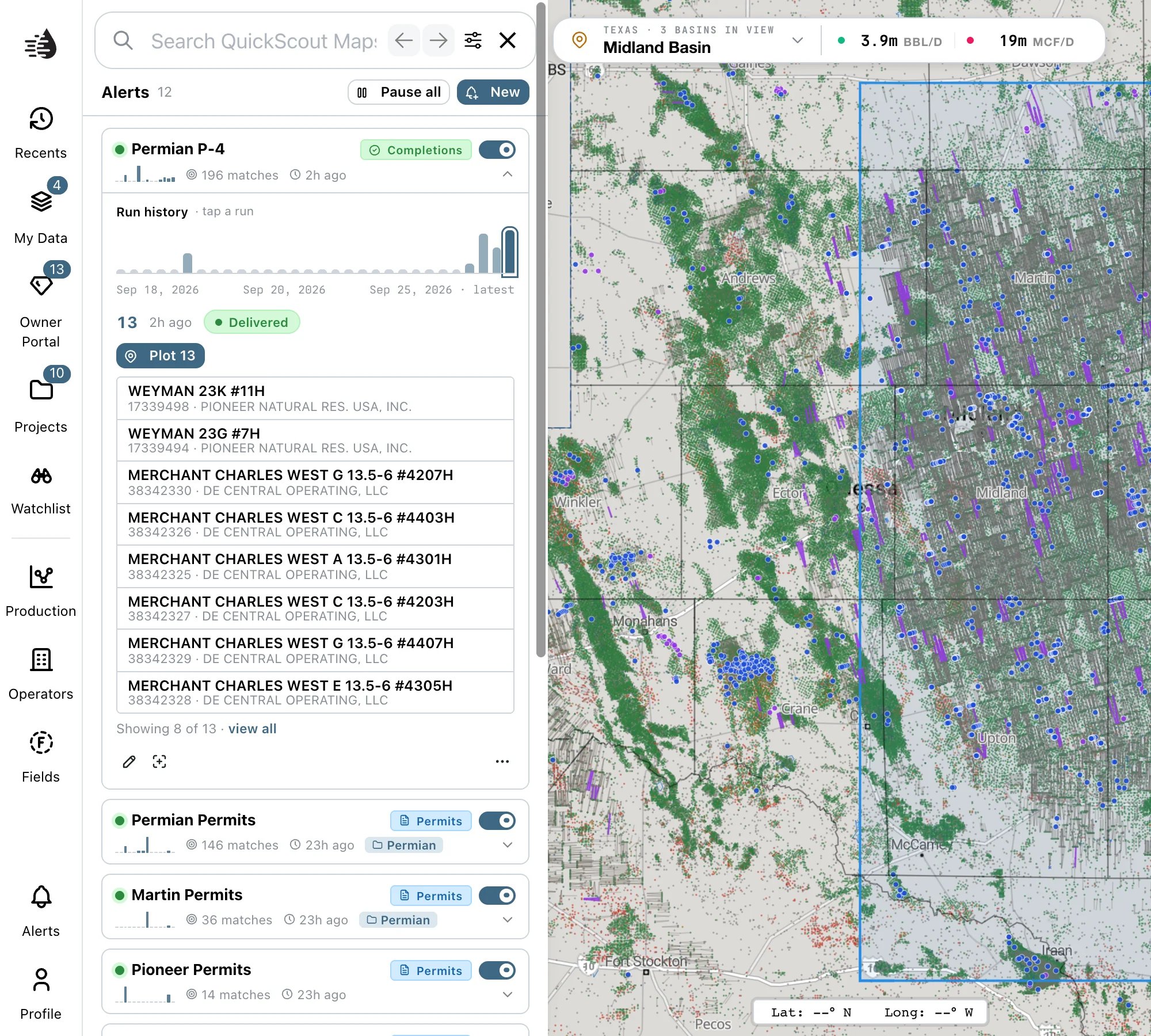
The drawer lists every alert, most recently active first. Each row shows:- Its name, and a tag for its source, such as Permits or Completions.
- A 14-day chart of matches, how many it has found in the last 30 days, and when it last found something.
- A switch to pause it (Pause alert) or turn it back on (Resume alert). A paused alert is dimmed and marked PAUSED.
See what an alert found
Click an alert to expand it. The map outlines its area in blue and flies there.- Run history has a bar for each of the last 30 runs, sized by how many matches it found. Click a bar to see that run. A run is Delivered, found No matches, or Failed.
- The run’s matches are listed underneath: the lease and well number, API, operator and county. Click a match to open the well’s record.
- Plot N puts the run’s matches on the map as blue pins and frames them. Hover a pin for the well, or click it to open the record. Re-frame frames them again after you’ve moved the map.
- When a run found more than eight wells, click view all.
View all, and export
view all opens the run’s full results in Replay:- MATCHES, EXECUTION time and STATUS across the top.
- Breakdowns By operator, By field and By county, and the average Lateral length.
- Every result in a table. Filter results… narrows it, and Export CSV downloads the rows you’re looking at.
Edit, duplicate and delete
On an expanded alert:- The pencil (Edit alert) reopens the three steps. You can change the name, areas, counties, filters and where it’s delivered. The source can’t be changed; create a new alert for that.
- The crosshair zooms to the alert’s area.
- ⋯ has Duplicate and Delete.
Limits
- Up to 50 active alerts. Pause or delete one to make room.
- Alerts check hourly. That can’t be changed.
- Operator transfers (P-4s), frac jobs and satellite pads aren’t sources yet.
Troubleshooting
Continue is greyed out
Continue is greyed out
Each step needs something before you can move on:
- Area: at least one area or county.
- Source: a source.
- Review: a name (Give this alert a name) and at least one of Email or SMS (Pick at least one way to be notified).
Use current map view did nothing
Use current map view did nothing
The visible part of the map is too narrow, usually because the data tables are wide open. Close or narrow the tables, then try again.
An identical alert already exists
An identical alert already exists
You already have an alert with the same source, area and filters. Change a filter or the area.
Active-alert limit reached (50)
Active-alert limit reached (50)
Pause or delete an alert you no longer need, then save again.
My alert hasn't sent anything
My alert hasn't sent anything
- Expand it and look at Run history. No runs yet means the first run is still due, within the hour.
- Runs marked No matches mean nothing new was filed in the area. Widen the area, or clear a filter.
- Check it isn’t PAUSED.
- Texts go to the phone number on your QuickScout account. If none is on file, choose Email.
Editing an old alert shows no area
Editing an old alert shows no area
Some older alerts were saved in a format the editor can’t redraw. Draw the area again, then Save changes.