

- Making or changing a page goes through Ask, so it needs a free account and uses credits. See Sign in.
- People you share a page with open it by signing in; a free account is enough. A page shared with Anyone with the link opens for anyone, signed in or not, to view only.
- Your pages, the list of all your pages, needs you to be signed in.
Make a page
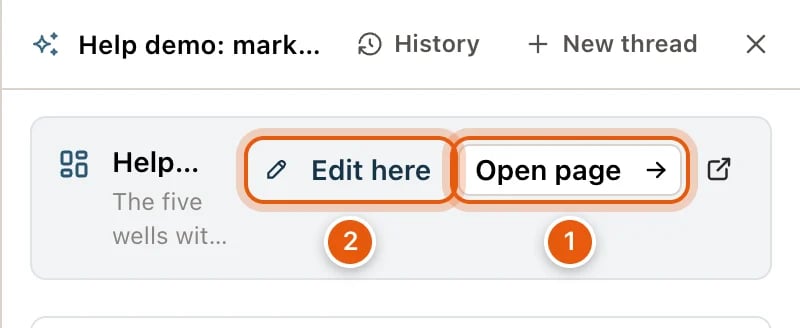
Ask for one in the Ask column, like Make a one-page report on the wells in view or Build a dashboard of this operator’s production. The agent gathers the data, lays out the page and publishes it. A card for the page appears in the answer:- The page’s title, and its version (V2, V3…) once it has changed.
- Its description, or A page built from this answer’s data.
- Open page opens it in this tab. The icon beside it opens it in a new tab.
- Edit here, to change it from the map. See below.
Change a page from the map
Edit here on the card makes the page the subject of your next questions, without leaving the map:- A chip above the question box reads Editing: ‹title›, and the box asks Ask about or change this page….
- Ask for a change, like add 2022 or make the bars blue. The agent publishes it as a new version, and the answer carries the page’s card again.
- While it’s on, the card’s button reads Editing. Click it again, or the ✕ on the chip (Stop editing this page), to go back to asking about the map. A New thread clears it too.
The page
Open a page from its card, from a shared link, or from Your pages. The page fills the window, with a bar across the top and a chat on the right.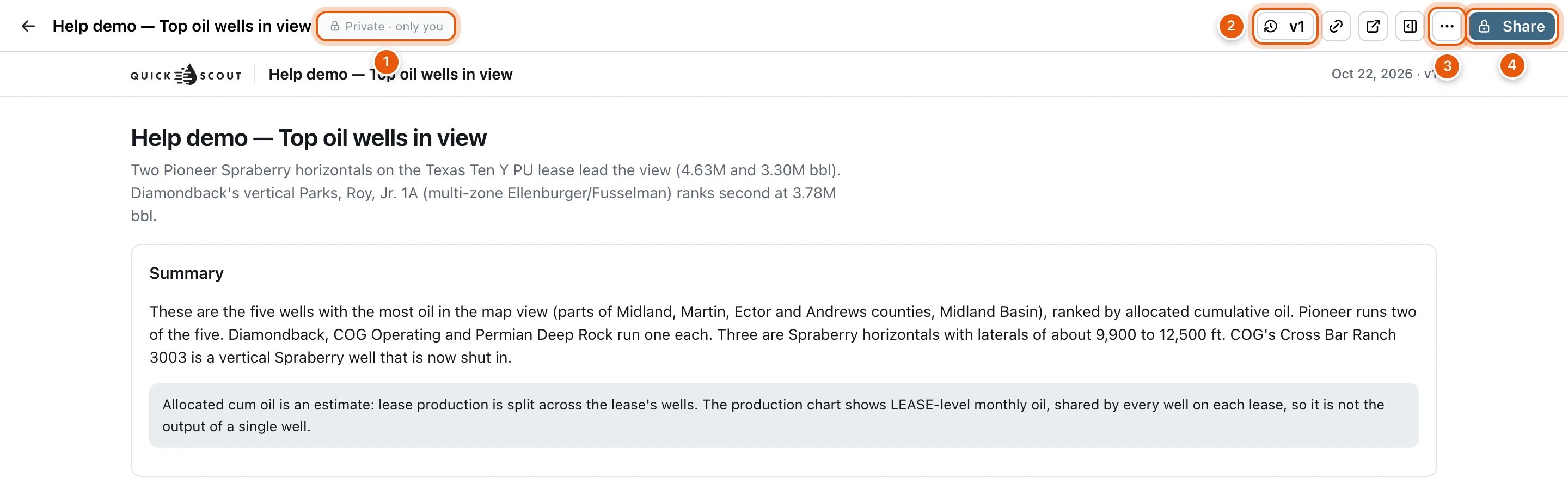
- The arrow (Back to the map).
- The title, and who can see the page: Private · only you, Shared · 3 people, Shared · organization, Shared · project, Shared with you, or Anyone with the link.
- CAN EDIT or VIEW ONLY, on a page someone shared with you.
- The version button, like v3. See Versions.
- Copy link, Open in a new tab, and Ask about this page or Hide the chat.
- More (⋯) and Share.
The More menu
Versions
Every change makes a new version, and the older ones are kept. Click the version button (v3) to list them. Each shows its date, how it was made (PUBLISHED, DATA REFRESHED, COPIED or RESTORED V2), and a note on what changed. Click an older version to view it. A banner reads You’re viewing version 2 of 3:- Restore this version makes it the latest again. It’s saved as a new version, so the one you replaced is still in the list. Owner and editors only.
- Back to latest returns to the newest version.
Refresh the data
More → Refresh data re-runs the page’s data against today’s records: the same queries, over the same area. The layout doesn’t change. Click Refresh. When it’s done, Version 4 is up with today’s data. and a line for each set of data say what changed. The new version is the latest, and the old one stays in the list. Refreshing doesn’t use credits. If a refresh fails, nothing changes: the page keeps its last version. Ask about the page in its chat to rebuild data that no longer runs.Ask about this page
The chat on the right is Ask, about this page. Ask what it shows, like why is March low?, or ask for a change, like add 2022. A change becomes a new version, and the page switches to it with a note saying what changed.- The chat picks up your last conversation about the page. New conversation starts another.
- If you can only view the page, a change you ask for is made on your own copy, and the answer links to it.
- Asking uses credits, the same as Ask on the map.
- Hide the chat in the bar folds it away, and Ask about this page brings it back. The page remembers your choice on this device.
Move a page to the trash
Only the owner can do this. More → Move to trash asks Move this page to the trash? Its link stops working for everyone. To bring it back, open Your pages → Trash and click Restore. Every version comes back with it.Share a page with others
Only a page’s owner can change who has access. Anyone else who clicks Share sees how the page is shared with them, with Copy link and Make a copy.1
Open the page and click Share
Share is at the top right of the page.
2
Add people by email
Type an email address into Add people by email. To add several, paste them all at once, separated by commas or spaces. Beside the box, pick Viewer or Editor.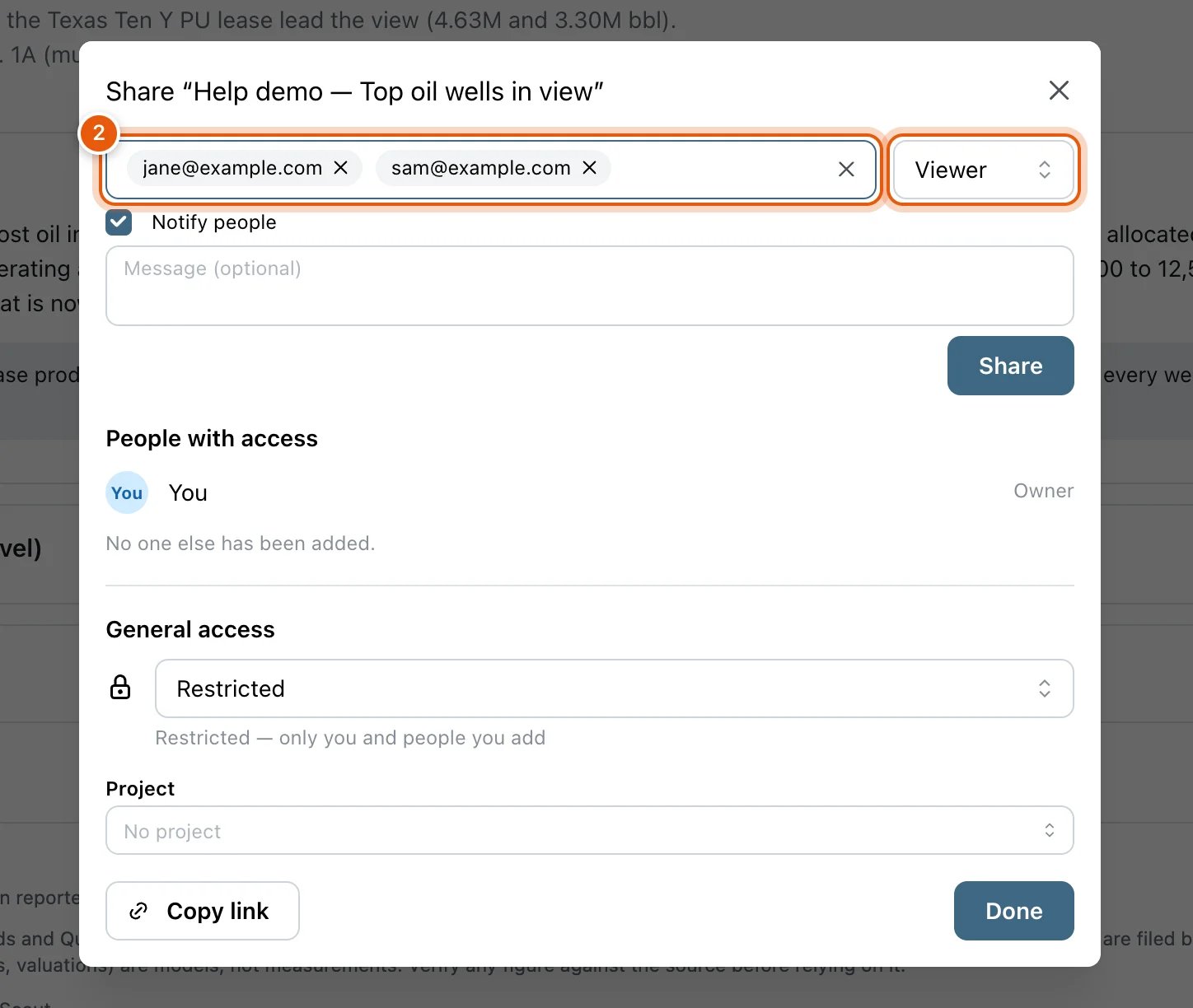
3
Tell them, then click Share
Notify people is ticked, so each new person gets an email with the link. Add a note in Message (optional) if you like. Click Share.They’ll find the page under Shared with me in Your pages when they sign in with that address.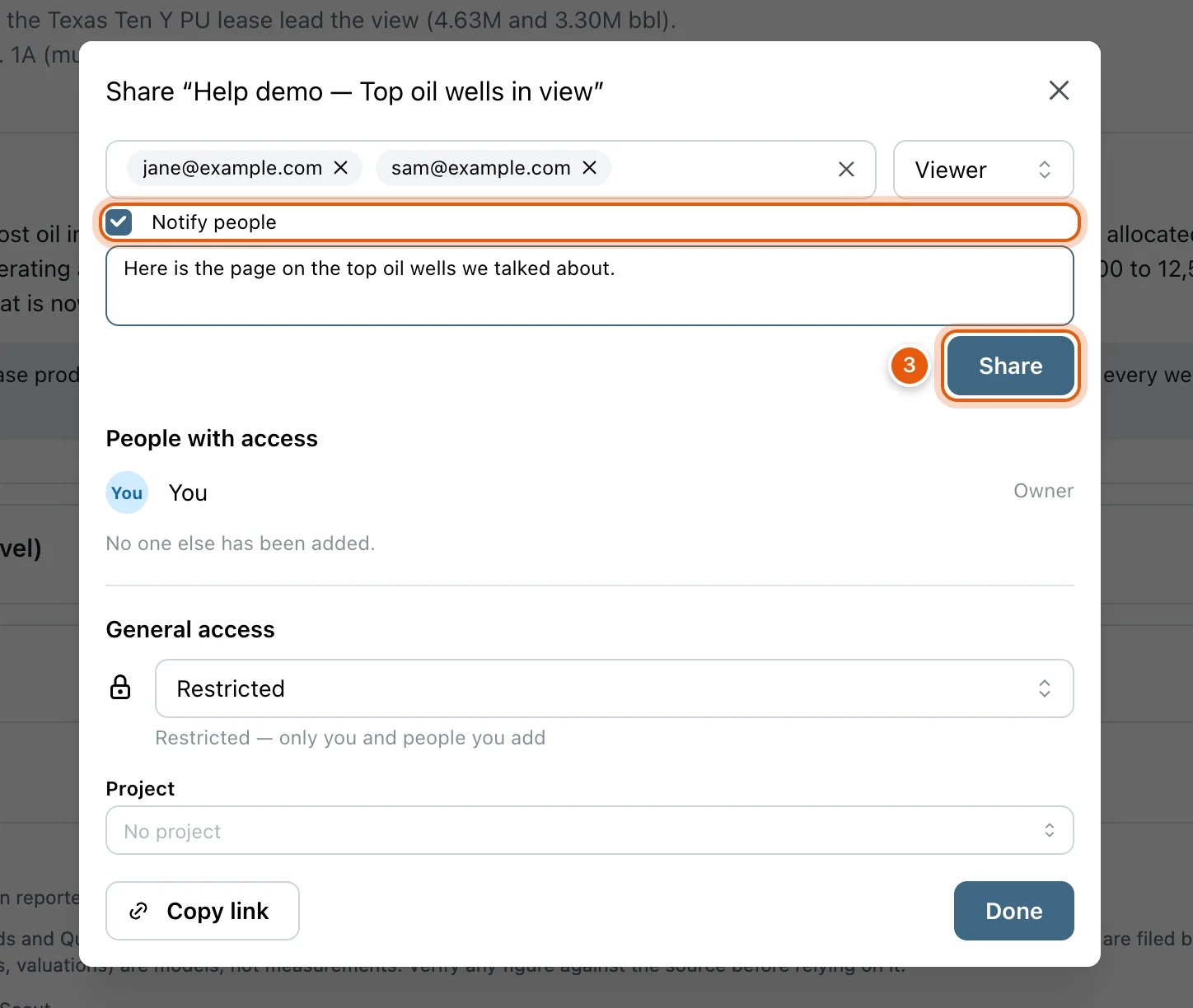
4
Choose who else can open it (optional)
Under General access, Restricted keeps the page to you and the people you add. Pick another choice to open it wider. See The Share dialog.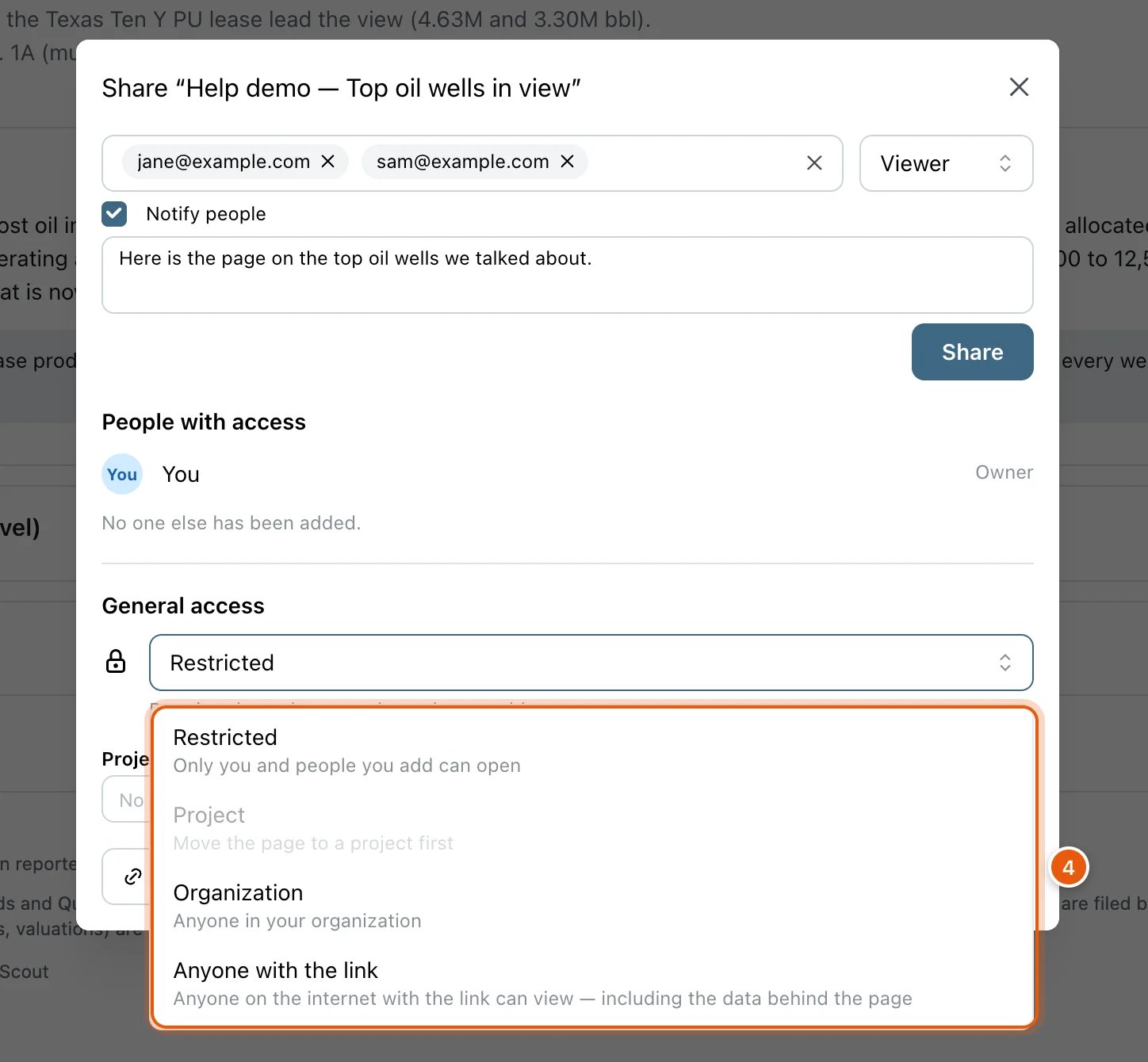
5
Copy the link and click Done
Copy link copies the page’s address, to paste into an email or a message. Done closes the dialog. Your changes are already saved.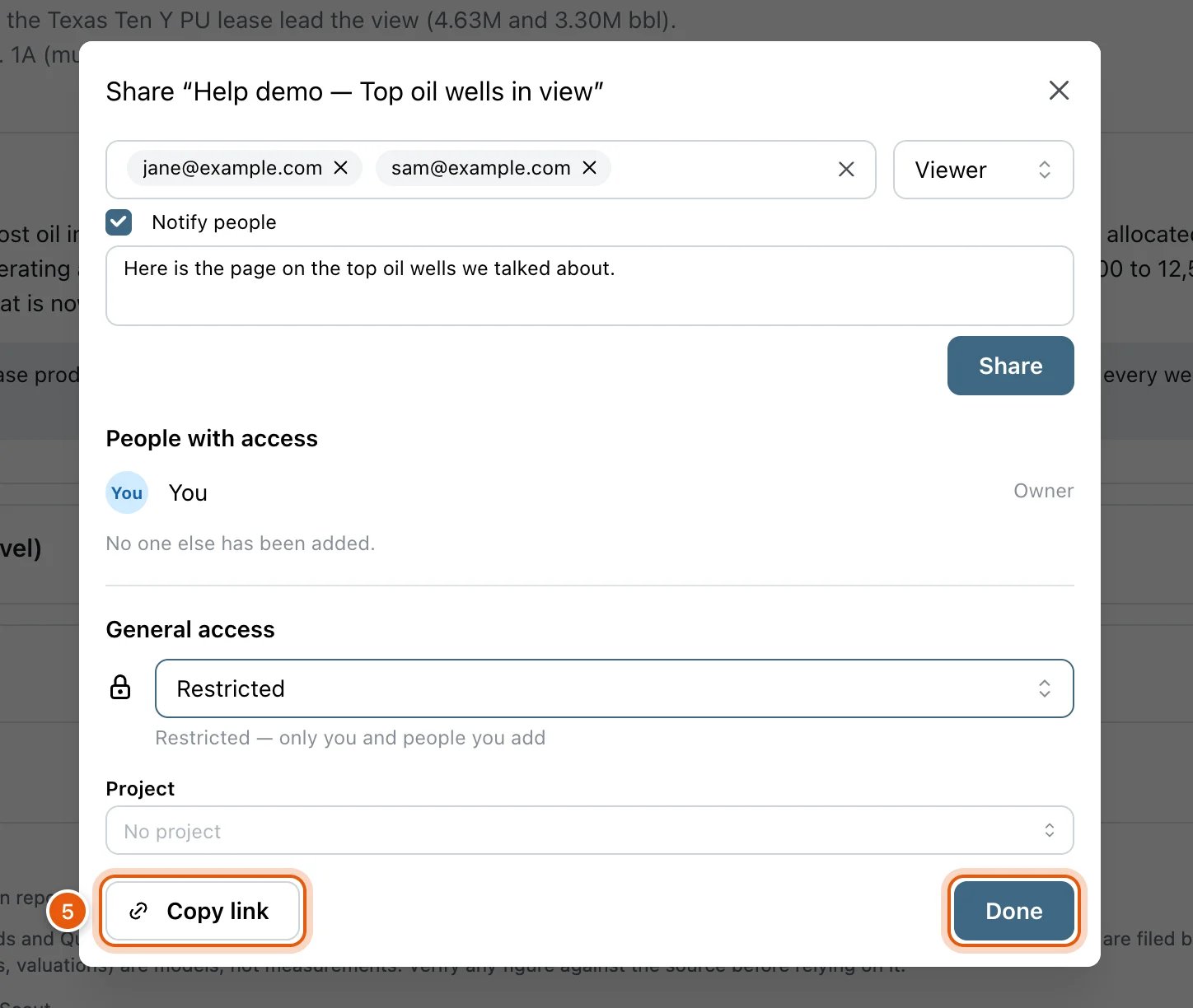
The Share dialog
People with access lists you (Owner), then each person you added, marked Notified by e-mail or Not notified. Change a person’s role with the menu beside them: Viewer, Editor, or Remove. General access decides who else can open the page:
Every change in the dialog is saved as you make it. Adding people is the one step that waits for Share.
What each role can do:
Your pages
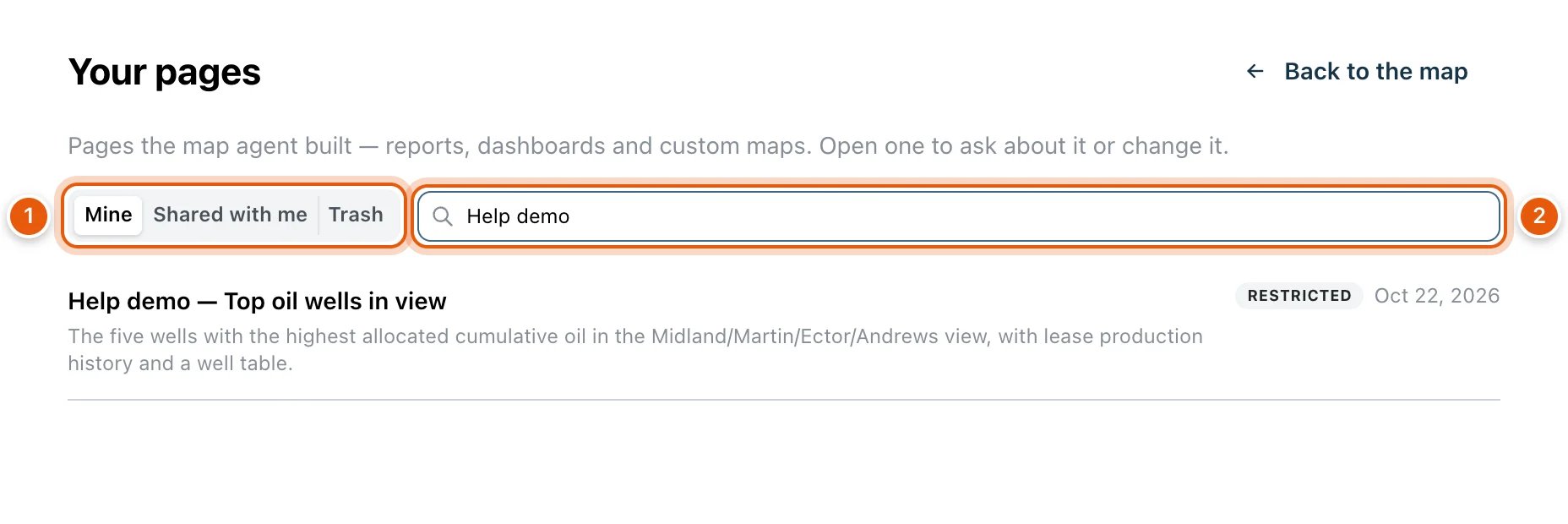
Every page you’ve made, and every page shared with you, is listed at quickscout.io/artifacts. You need to be signed in.- Mine, Shared with me and Trash switch the list.
- Search titles finds a page by name.
- Each row shows the page’s title and description, and badges: SHARED on someone else’s page, who can see your own (like RESTRICTED), and its version.
- Click a row to open the page. In Trash, Restore brings a page back.
- Back to the map returns to Maps.
Opening a page you don’t own
What you see depends on how the page is shared:Credits
Pages are made and changed by asking, so building or changing one uses credits, in the Ask column or in the page’s own chat. Opening, sharing, copying, downloading and refreshing a page don’t.
Troubleshooting
Download data says a table has no rows
Download data says a table has no rows
Some data behind a page isn’t a table, such as a single figure. Download it as JSON instead of CSV.
Refresh data failed
Refresh data failed
Nothing changed: the page still shows its last version. Ask about the page in its chat, for example the wells table no longer loads, please rebuild it.