

On the well card
A well’s card lists its records under Records, shallowest first, near its formation tops. The note beside the heading counts them by kind, like 2 completions · 6 perforations · 1 DST · 1 core. Each record is one line: its mark, then its kind, depths and what matters most for its kind. For example, DST 3 · 5,616–5,640 ft · 1,800 ft gas cut oil · ISIP 1,940 / FSIP 1,880 psi. Under it: the formation it’s in, its date, and whose it is. A completion’s perforations, treatments, tests and squeezes are listed under it, indented. Click a record to open the whole of it: every figure, its lists (a DST’s pipe recovery, a core’s analysis) and its note. Click it again to close it.- Edit opens the editor. A well with no records has Add one instead.
- The formation comes from the well’s formation tops. Where the tops don’t name one, the formation the record itself gives is shown, marked (as filed).
- Records you brought in with an import in My Wells are listed as Yours · scout ticket.
- The RRC’s own potential tests aren’t repeated here. They show on the cross-section and the log.
Add or change records
Open the editor with Edit or Add one under Records on the well’s card. It opens in the drawer on the left, headed RECORDS and the well’s name. You can also get there from:- The Well data tab of the well editor: Add a record, or Records · 3 when the well has some. See My Wells.
- The cross-section: More fields… on a new record, Edit on one of yours, or Open the well’s records on one that isn’t yours. The editor then has Back to the cross-section. See Cross-sections.
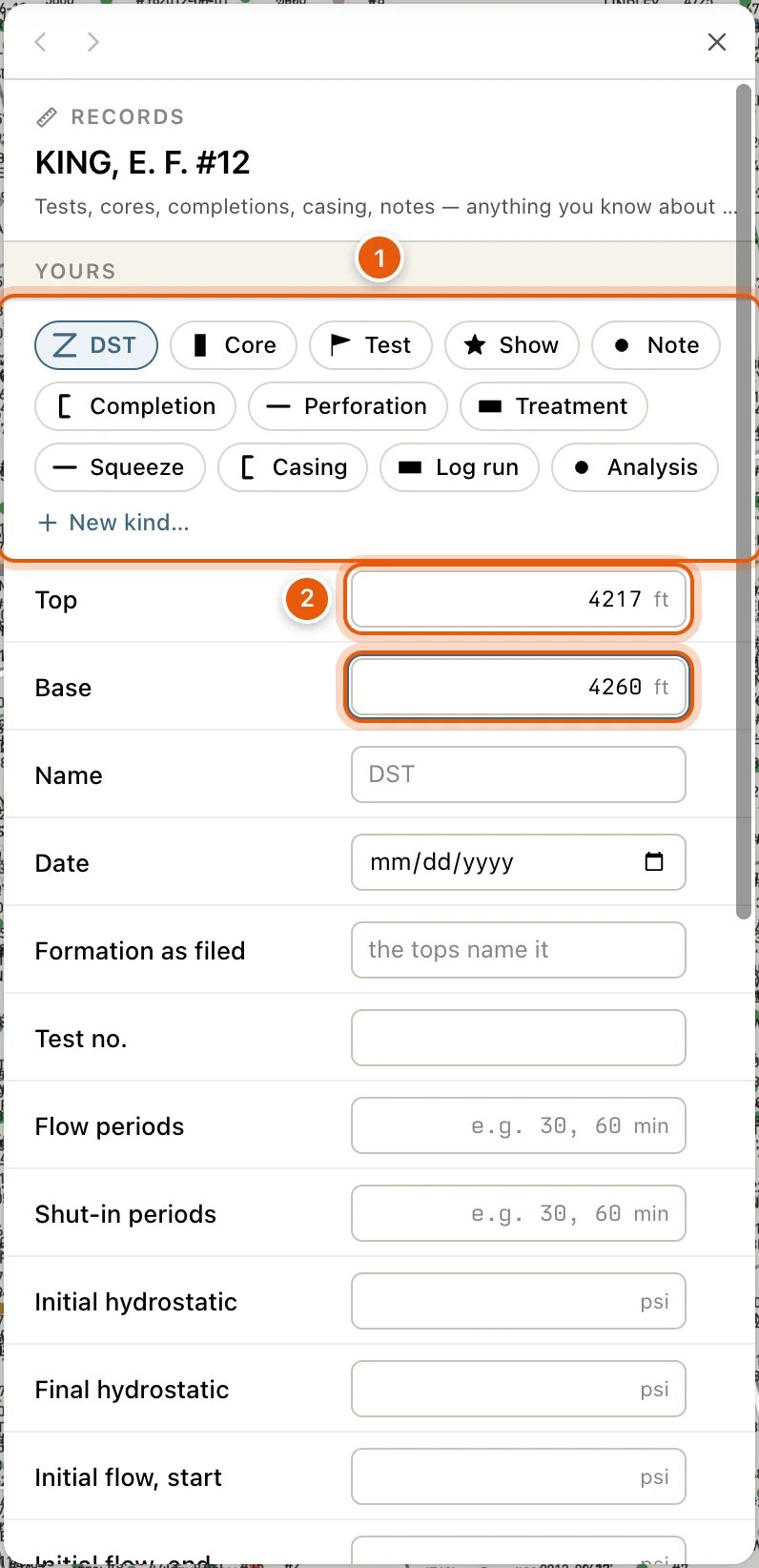
1
Choose the kind
Under YOURS, click the button for the record’s kind, such as Add a DST, Add a Core or Add a Completion. There’s one for each kind in the table below. Kinds your team made appear here too, as Add and the kind’s name.Under a completion of yours, Add a perforation here (or a treatment, a test or a squeeze) files the new record under that completion.
2
Give its depths
Type the Top in feet, measured depth. Leave Base blank for a record at one depth. A completion, an analysis or a note can go without a top.
3
Fill in what you know
- Name: leave it blank for a name made from the kind, like DST 3.
- Date: the day of the test or core. For a completion, the day it was completed.
- Formation as filed: the formation the record names. Leave it blank to let the well’s tops name it.
- Under completion: for a perforation, a treatment, a test or a squeeze, the completion it belongs to, or None. Offered when the well has a completion.
- The kind’s own fields. A list, such as a DST’s pipe recovery, has Add a row, and Remove on each row.
- Note: anything else, in your own words.
- Other details: Add a detail for anything the kind has no box for, as a Label, Value and Unit.
4
Click Add
The record saves on its own, and a message confirms it. Cancel throws the form away.
What each kind holds
When a DST has no Result, QuickScout reads one from what came up the pipe: an oil- or gas-cut mud is a show.
Make a kind of your own
For records that don’t fit the built-in kinds, such as lost circulation:- Click New kind…, after the buttons that add each kind.
- Name it under Kind, and choose its Mark and Color. Each mark is named beside its shape, such as Triangle or Diamond.
- Under Fields it always has, Add a field for each figure it should ask for, with its Label, Type (Number, Text, Pressure, Minutes, Rate or Date) and Unit.
- Click Make the kind.
On the cross-section and the log
- On the cross-section, each record is marked beside its well’s bore at its depths, and the Show row has a check for each kind. Drag down a bore to add a record there. Your perforation records are drawn as the bore’s perforations.
- In the Log tab, records are marked at their depths along the strip’s right edge.
Troubleshooting
A record's formation is blank, or wrong
A record's formation is blank, or wrong
The formation is read from the well’s formation tops at the record’s depth. Add or correct the tops in the tops editor, or type the name into Formation as filed.
There's no Edit or Remove on a record
There's no Edit or Remove on a record
Only your own records can be changed. Your team’s are read-only, and so are the RRC’s tests.
Add says something is wrong
Add says something is wrong
The message beside Add names what to fix, such as The base is above the top, or a box whose figure isn’t a number.