

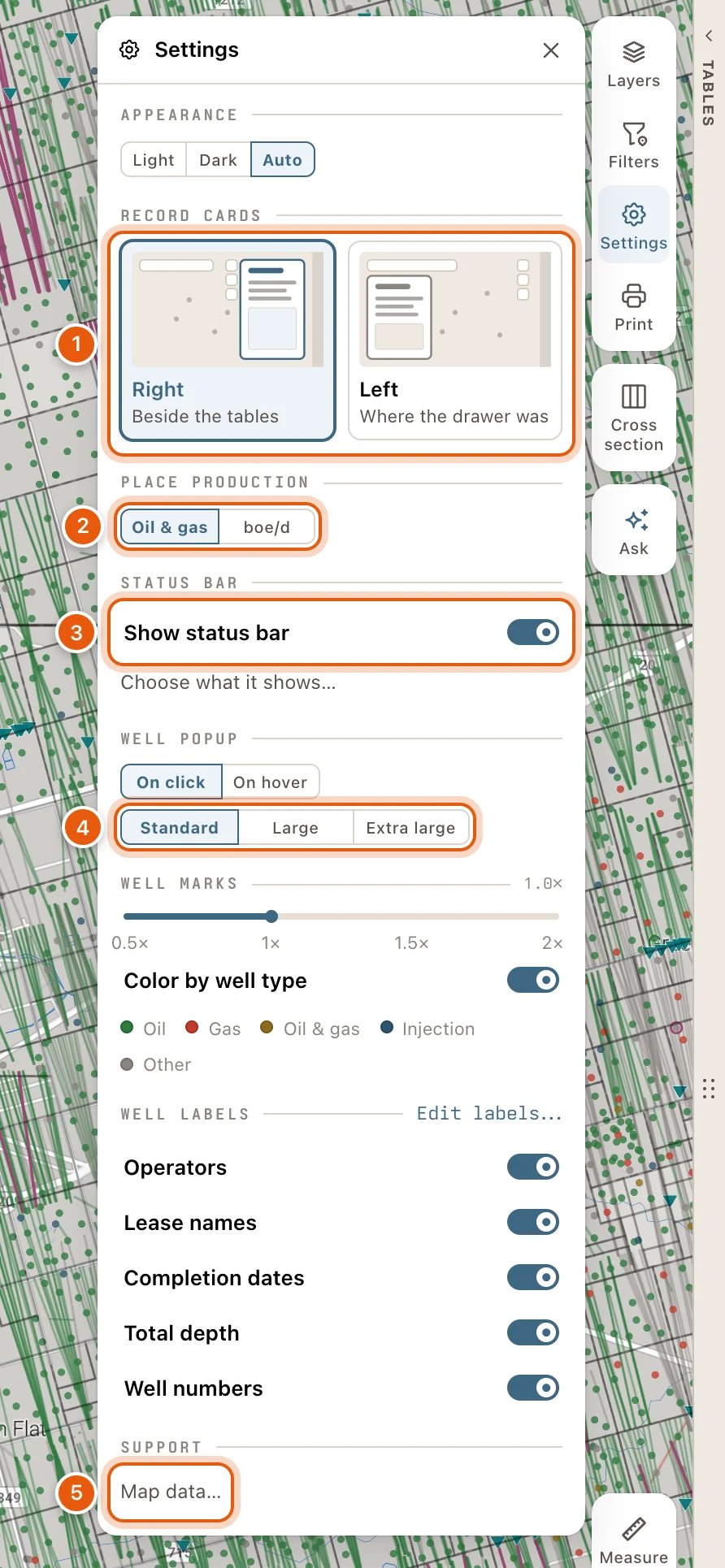
Appearance
Choose Light, Dark or Auto. Auto, the default, follows your computer’s light or dark setting.Record cards
A well, lease, operator or field opens as a card. Choose where it opens:- Right (Beside the tables), the default. With the tables shut, the card stands on its own at the right of the map.
- Left (Where the drawer was): under the search box, where drawers like My Data and Alerts open. A card and a drawer take turns there: the one you opened last is in front.
Place production
The place control at the top centre of the map shows what the wells in view produce. Choose how:- Oil & gas, the default: oil in bbl/d and gas in mcf/d, side by side, so you can tell which one a place mostly produces.
- boe/d: one rate, with gas counted as barrels of oil equivalent, six mcf to the barrel.
Status bar
The status bar sits at the bottom left of the map, beside the Map style thumbnail. Show status bar turns it on or off. To choose what it shows, click Choose what it shows… under the switch, or click the bar itself. Its card has a switch for each part, in the order they appear on the bar.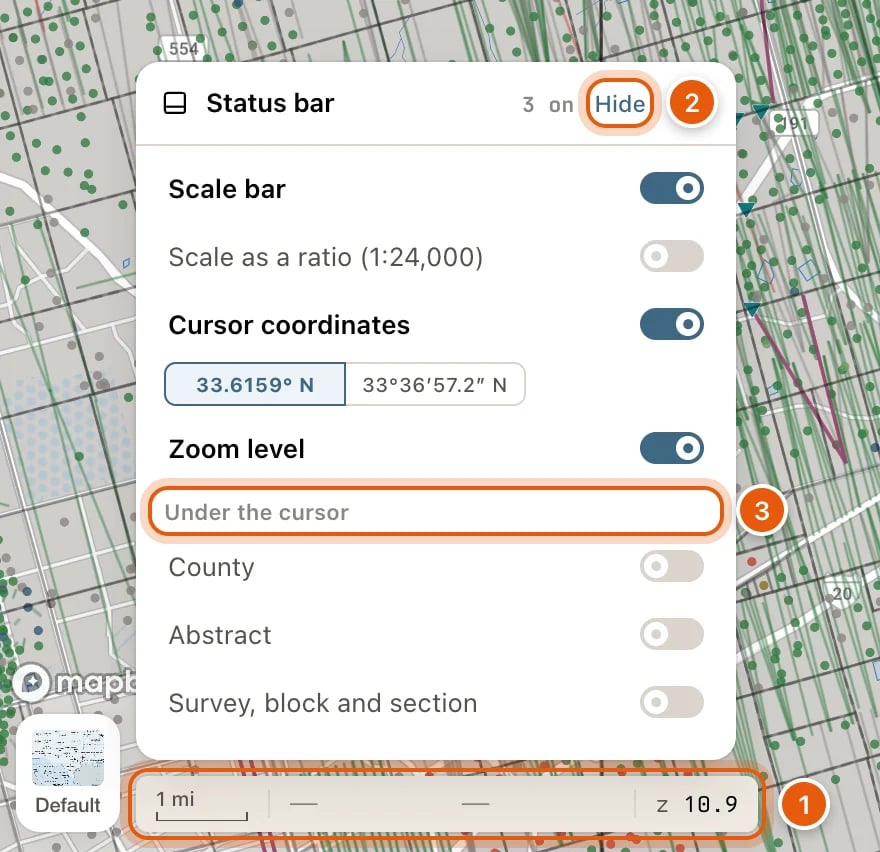
The last three sit under Under the cursor in the card.
Hide, at the top of the bar’s card, takes the bar off the map in one click. Switching every part off does the same. Either way, Show status bar in Settings brings it back: with the parts it had if you used Hide, or with the scale bar and coordinates if you switched each part off.
Well popup
The first pair of choices sets what opens a well’s popup:- On click, the default: clicking a well shows its popup, and View well in the popup opens its card. The popup stays open until you click elsewhere on the map, click another well, click its ✕ or press Esc. Hovering only changes the pointer.
- On hover: rest the pointer on a well to see its popup. It goes when the pointer leaves it. Clicking a well opens its card.
Well marks
The slider sets the size of well symbols, from 0.5× to 2×. The current size shows beside WELL MARKS. Color by well type, on at first, colors wells as Oil, Gas, Oil & gas, Injection or Other. Switch it off to draw every well in one tone.Well labels
The switches show or hide Operators, Lease names, Completion dates, Total depth and Well numbers beside each well. Edit labels… opens the label editor, with more fields, presets and placement. See Well labels.Map data
Under SUPPORT, Map data… opens the Map data window: how much map data is kept on this device, with Download all and Clear all map data, and a switch to stop keeping map data on this device at all. See Map data on this device.Where your settings are kept
Signed out, your RECORD CARDS, PLACE PRODUCTION, STATUS BAR and popup size choices last until you reload the page.